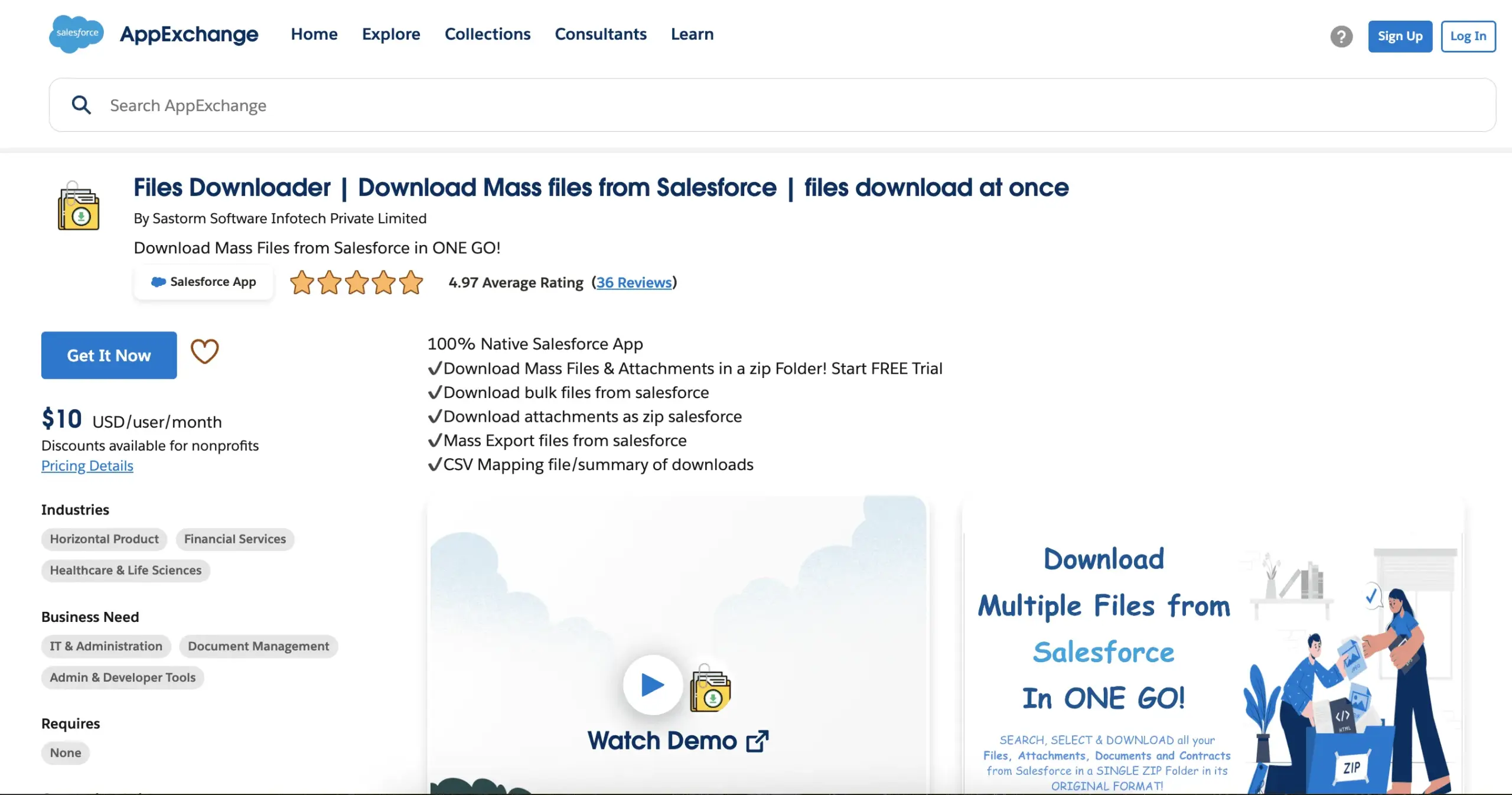
Easily set up File Downloader in your Salesforce environment with our simple, step-by-step instructions. Follow the guide to ensure a quick, hassle-free installation and start mass exporting files from Salesforce in no time!
Visit the Salesforce AppExchange and search for Files Downloader.
Click the “Get It Now” button on the AppExchange listing page.
Select installation for all users or specific profiles based on your needs.
Enter your credentials to access the Salesforce environment for installation.
Review and confirm installation settings as prompted.
Click the Install button to start the installation process.
Choose whether to install for Admins, all users, or specific profiles.
Upon completion, you'll receive a confirmation email.
Open Salesforce, go to the App Launcher, and select “Files Downloader.”
FAQs
No FAQs found for this page.